|
|

|
|
ReportToText Template |
|
|
Introduction |
|
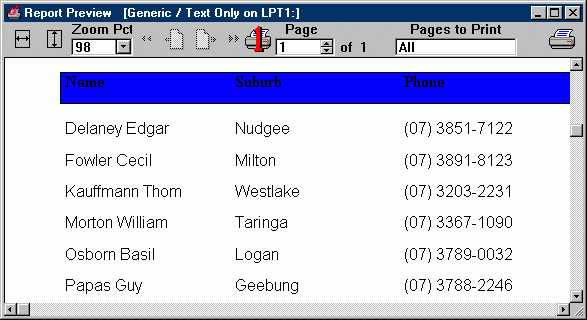
| Often you may wish to save reports in a "No frills" format - just as a text file. |
| This allows you, for instance, to save a report into a text file and search it for any particular string. |
| It also enables you to archive all reports produced by your program. |
| This is what ReportToText template does. |
| Main advantages of using the template: |
|
Installation |
| Run the installation wizard. It will guide you through a few simple steps. That is it. |
| IMPORTANT: If you are using Clarion 5-6, after selecting Clarion5-Clarion6 directory wizard |
| will offer to install it into C:\Clarion5(6)\Clarion8 or C:\C55\Clarion8 directory |
| respectively. So don't forget to remove the last \Clarion8. But even if you do forget - no problem. |
| Just uninstall the template and re-run the installation. |
| To start using the template you'll need to manually register it. |
| Open Clarion (no application must be opened). |
| Go to menu Tools (Setup) -> (Edit) Template Registry -> Register. |
| Select new template rpttotxt.tpl and then hit Open button |
| You can find it in Clarion7(8,9,10...)\accessory\template\win |
| for Clarion >= 7 and in Clarion*\Template - for all others. |
| View our animated reminder on how to do this - Registering Template |
|
(built with our JAVA Animated
Help Builder).
|
Using Template |
| Firstly, you'll need to insert the Global extension Save Report to Text and then repeat this |
| routine for each report and insert the respective local extension. And that is all |
| you have to do! |
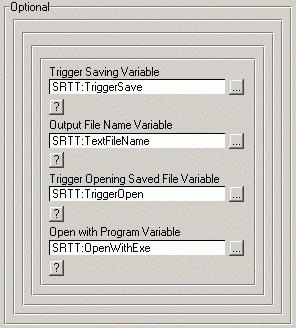
|
| The above picture shows the local template interface. These 4 variables |
| control what you may wish to do: whether to save a report or not; which text file name to use; |
| whether a just created text file should be opened or not; and with which program. |
| This template employs Generic printer driver which is shipped with all Windows OS. |
| So it takes only a few minutes to install. |
| Hit the Start windows button and go Settings/Printers. Then hit Add printer button |
| and in Manufacturers browse select Generic. Simple, isn't it? |
| Clarion 6 now has very much the same feature - saving reports into text. However, it's |
| only included in the Enterprise version. Besides, in comparison with this template, it |
| has some overheads. So Clarion 6 Professional users can view this template as |
| a cheap alternative to the Enterprise extras. Enterprise owners can find |
| it useful as well... |
| We've installed this example into your Clarion*\Examples\RptToTxt directory |
| Or Clarion7(8,9,10...)\Lessons\RptToTxt in Clarion 7-10.... |
| So for various settings you can investigate the source. |
 |

|
|
Copyright © 2025 Vivid Help Systems Pty Ltd |