|
|
|

|
|
|
Outlook Email Report Template |
|
|
|
|
|
|
|
|
Outlook Email Report for Clarion
5-10... ABC/Legacy.
This template allows you to send Clarion, CPCS, RPM, DAS, Tintools,
and Icetips
reports with MS Outlook as universal RTF attachment (which can be opened
even with WordPad in all Windows OS starting from 95). Besides you can use
the template just for saving reports to disc
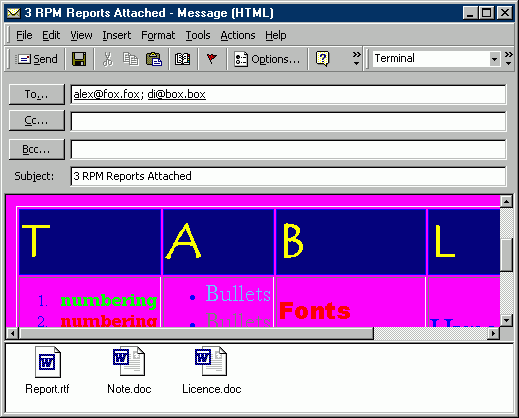
in this universal format and for sending ordinary emails. No email settings are required from end-users. The picture on the right gives some idea of how the template works. Download our 'Try before buy' shareware version of the template and test it right in your application. You can have a quick look at emails generated by template as well.
|
|
| Outlook Email Report sends Clarion reports as Rich Text Format (RTF) attachments. | |
| To generate RTF files you don't need any expensive drivers (like PDF). | |
| Nor do you need any third party programs to read them. If you have MS Office this file | |
| will be opened with Word, or otherwise with Windows WordPad. | |
| It means all Windows recipients of such emails are just a double-click away from | |
| viewing and printing any Clarion report generated by your program. | |
| Outlook Email Report template works in conjunction with MS Outlook. | |
| So if your users prefer Outlook Express | |
| you may choose to use another of our templates - EmailReport. | |
| Outlook Email Report directly supports all major report templates: Clarion, CPCS, | |
| RPM, DAS, Tintools, and Icetips. | |
| Potentially, it can be used with a much wider range of report templates. | |
| That's why we've produced a free "Try before buy version" of this template so you can | |
| ensure the emplate does what you want. | |
| Sending reports is the main job of the Outlook Email Report template, | |
| and yet it can also be used for composing and sending ordinary emails with Outlook. | |
| So you can populate the email Subject, Body, Addresses and attachments directly from | |
| Clarion fields and send them one-by-one or in batch mode. | |
| Advantages of using template: | |
|
|
Installation |
|
| Run the installation wizard. It will guide you through a few simple steps. That is it. | |
| IMPORTANT: If you are using Clarion 5-6, after selecting Clarion5-Clarion6 directory wizard | |
| will offer to install it into C:\Clarion5(6)\Clarion8 or C:\C55\Clarion8 directory respectively. | |
| So don't forget to remove the last \Clarion8. But even if you do - no problem. | |
| Just uninstall the template and re-run the installation. | |
| To start using the template you'll need to manually register it. | |
| To do this: Open Clarion (no application must be open). | |
| Go to menu Tools (Setup) -> (Edit) Template Registry -> Register. | |
| Select new template oemlrpt.tpl and then hit Open button. | |
| You can find it in Clarion7(8,9,10...)\accessory\template\win | |
| for Clarion >= 7 and in Clarion*\Template - for all others. | |
| View our animated reminder on how to do this - Registering Template | |
|
(built with our JAVA Animated
Help Builder).
|
|
|
|
|
| Global Extension Template | |
| First of all you'll need to install global Outlook Email Report extension template into your | |
| application containing the report(s) you want to email (no matter whether DLL or EXE) | |
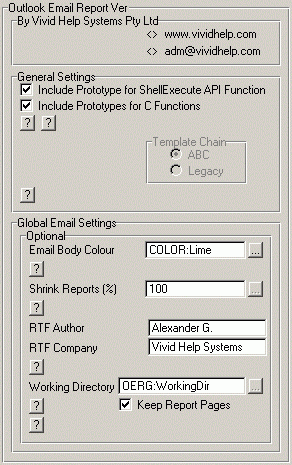
| The template chain prompt is now deprecated so it is always disabled. | |
| (Outlook Email Report Template now does it automatically). | |
| There is the option to define one email background colour here for all reports. | |
| Later you can override it for any report you like (see picture below). | |
| Outlook Email Report supports global image shrinking. But you can | |
| override it locally for each report as well. | |
| Shrink reports prompt allows you to define one shrinking factor for all | |
| reports in this application. You can use either numbers or your variable here. | |
| You also have the option to override it locally for each report. | |
| We've added this shrinking feature for developers who wish | |
| to print emails or who send landscape reports. | |
| In multi-dll application you need to include this extension both in the application | |
| containing reports, and also in the main definition dll (where all files and ABC | |
| definitions are). | |
 |
|
| The next 2 prompts are optional. These are internal RTF document properties | |
| so your customers won't see them. Nevertheless you can leave | |
| your "signature" here if you wish. | |
| By default the template creates a subdirectory \VH\ under your working directory | |
| to keep temporary template files. On some networks it may cause problems. | |
| So the last prompt is the place where you can override this default behaviour. | |
| The emplate creates a global variable associated with this prompt GLO:WorkingDir | |
| So you can specify any other directory like this: GLO:WorkingDir = 'C:\Temp' | |
| In this case the template will use C:\Temp on each workstation to build all required files. | |
| Even if this directory doesn't exist, the template will create it. | |
| It will even create nested directories for you! So if you prime this | |
| variable to say C:\Temp\A\B\C you will find this directory structure. | |
| And if you don't use this variable the template will work normal, that is | |
| it will create a working directory \VH\ on the server under your working directory | |
| and use that. | |
| Normally Keep report pages checkbox should be OFF. When ticked, | |
| it will save all temporary WMF report pages in the working directory. | |
| You may need it when using non-standard reports to estimate | |
| picture sizes. Don't forget to set it to OFF before program release. | |
| Though even if you do forget, it won't upset your end-users. | |
| The only difference is that their working directory will be slightly larger. | |
| Procedure Extension Template | |
| The icture below shows all settings you need to define in the report extension. | |
| To open a Tab other than the first one simply move the cursor over it. | |
| General Tab | |
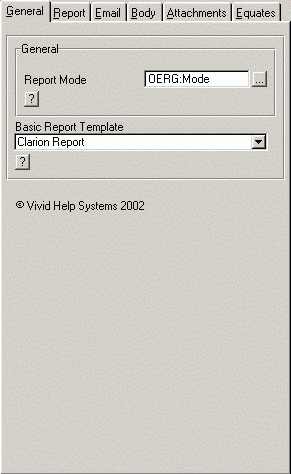
| First of all you have to select your Basic Report template from the combo. | |
| You can find it - on the bottom of the first tab - General. | |
| (see combo below): | |
| It defaults to whatever report the template sees in the current report procedure. | |
| It is important to stress that this is just a suggestion. So if you wish to | |
| you can reselect any other report template. You may want to do this only in exceptional | |
| situations. For instance when you need to apply an embed template to solve an unusual | |
| request of the end-users (email and print at the same time etc.). Or you have some uncommon | |
| hybrid say CPCS + RPM. We provide examples for each of the directly supported templates | |
| in Clarion*\Examples\OutlkEr directory so you can investigate recommended | |
| template settings there. If you don't have all these report templates | |
| you can find a short application version in the respective subdirectories to suit you. | |
| And in C6 subdirectory you can find the C6 specific example which will give | |
| you some idea of how simple it can be to use Outlook EmailReport | |
| to email Clarion reports as a PDF attachment (both with and without report preview) | |
| or populate the email body with HTML generated by C6 report. | |
| Have a quick look at email examples. | |
| IMPORTANT: If you want to try to use this template with any report template | |
| other than those directly supported (Clarion, CPCS, RPM, DAS, Tintools, and Icetips), | |
| we would strongly recommended that you download our free shareware version | |
| of the template to ensure it will work. You have to select Other from the Basic | |
| report template prompt and use a new embed. You should do the same if you | |
| want to use this embed in one of the supported report templates. In the template | |
| examples you will discover how this embed can be used. | |
| The last choice from the drop down combo is None. You should apply this one | |
| only if you want to send ordinary emails (without any report attached). | |
| See examples for details. | |
| Report behaviour completely depends on one global variable - OREG:Mode | |
| You can use either numbers or equates defined. We've put them on the last tab | |
| so you can copy and paste them into your code: | |
|
|
| It goes without saying that if this value equal 0 - report will be printed, | |
| 1 - emailed with Outlook preview, 2 - emailed silently etc. | |
| IMPORTANT: If you have MS Word installed you can significantly improve | |
| performance in the Save mode by Opening Windows explorer/Folder Options/File | |
| Types and settings RTF type to NOT use DDE for opening. | |
| Report Tab | |
| Here you can specify the name of a RTF attachment file either from a variable or | |
| by hard-coding it from the prompt (using say 'ReportCopy' will create | |
| attachment ReportCopy.rtf). If you use a variable just use its name | |
| or find it from the lookup button. No exclamation marks are required! | |
| You can define the image shrinking factor for RTF reports | |
| and specify variable names for RTF file name and path for saving reports. | |
| Normally you wouldn't change this setting. Do so only if you | |
| have to send non-standard reports. | |
| Starting from version 6 you have full control over report sizing (both in Body and RTF). | |
| By default the template supports A4 reports. So the only thing you need to | |
| do to them is to specify whether the report has Landscape layout. | |
| To define report margins (for RTF) and report width and height the template generates and | |
| uses 4 global variables: OERG:RTFleft, OERG:RTFtop, OERG:RTFwidth, and OERG:RTFheight. | |
| Those values should be specified in 1/1000th of an Inch (Clarion default units). | |
| The simplest way to estimate your report sizes is to collect WMFs by setting | |
| global Keep report pages checkbox ON. Then open any of WMFs with Windows | |
| MS Paint and from Image -> Attributes menu find out the sizes in Inches. | |
| Don't forget to multiply it by 1000. It is important to understand that | |
| this need only be done if you are using non-standard report sizing. You will know | |
| immediately because improper sizing dramatically decreases report quality. | |
| So if you see this occurring you'll need to check report sizes: | |
|
|
| Otherwise you can completely ignore Position Group. | |
| The type of prompt used for all 4 size variables | |
| lets you define them either with a variable or implicitly as a number. | |
| So you can use predefined variables. You can | |
| define and use your own variables for that. At last you can just | |
| put a margin value right into the corresponding prompt. So long as you follow | |
| standard Clarion syntax you won't have any compile errors. | |
| Email Tab | |
| Here you can define all email addresses - EmailTo, CC and BCC. | |
| We've employed a special type of template prompt for them - expression. | |
| So you can either hardcode them or build as a combination | |
| of your fields. You can also populate this prompt from any variable. | |
| Just follow the simple specification below and employ | |
| standard Clarion syntax. For your convenience we've put the Example textbox | |
| (not used by the template) with a few standard EmailTo prototypes. So you can copy | |
| and paste any of these examples and just replace our field names with yours. | |
| Both EmailTo and Subject fields should be valid Clarion strings. Use lookup | |
| buttons to find and append any field from your Application as you would for formulae. | |
| Like email addresses you can either hardcode email Subject or | |
| define it from a variable. | |
| Body Tab | |
| You can populate the email body with your Clarion fields line-by-line. Just follow plain | |
| Clarion syntax and build any letter you like. | |
| Everything you add here goes directly into the embedded email HTML file. | |
| So you can use HTML tags as well. (Tag usually starts with something | |
| like <font> and ends with </font>. It can be <img> and </img> etc.) | |
| Just remember that each tag should occupy | |
| one line in the body queue. This restriction comes | |
| from the way we build the message body, rather than from HTML syntax. | |
| To make life easier we've put a new-line tag after each line of HTML | |
| So if you try to split a tag on more than one line - this tag will get broken | |
| by the new-line tag inserted by the template. | |
| If you are a hard-coder, you may wish to directly populate the | |
| body queue from the embed. The template stores that note in OERQ:BodyQue | |
| global queue. So for extra flexibility you can completely ignore Body Note template Tab | |
| and populate this queue directly from the special embed: EmailReport - After filing queues. | |
| So just use usual queue handling: | |
|
|
| If you omit FREE() function call, the template will append those lines to | |
| whatever you have already specified in the Body Note template prompt. | |
| Investigate the example provided with this template for details. | |
| Another option is to use any HTML file as the email body. So you can ship some | |
| standard HTML files with your program or build them on-the-fly. | |
| One thing to keep in mind - if you are using any HTML file to build the | |
| email body you automatically override all settings above (see the picture) | |
| So everything including background colour should be defined within | |
| this HTML | |
| IMPORTANT: When populating the whole body from an HTML file | |
| please bear in mind that Outlook is very unreliable when it comes to sending | |
| embedded images. So you should either avoid images in HTML files or | |
| reference images have been first published on the net. | |
| So <IMG src="http://www.vividhelp.com/images/small.gif"> will work fine. | |
| and <IMG src="C:/images/small.gif"> will not :-( | |
| Attachments Tab | |
| The template automatically attaches the report RTF file. So you have to | |
| use this tab only if you need to email other files. Like the email body | |
| you can either use this template prompt to define a | |
| list of attachments to be emailed or directly populate the attachment queue | |
| from the embed. | |
| Like the email body note, these attachments are stored in the global queue (OERQ:AttachmentQue) | |
| So for all emails you can use either the template settings or populate this queue directly | |
| from the same embed point. You can also combine these 2 methods. | |
| Something like this will do: | |
|
|
| Equates Tab | |
| This is a place where you can copy predefined equates for pasting them | |
| into your code. You can find examples of Email address formatting here as well. | |
| The prompt is ignored by the template, so you can store any information here you wish to. | |
| We've installed examples into your Clarion*\Examples\OutlkEr | |
| Or Clarion7(8,9,10...)\Lessons\OutlkEr in Clarion 7-10.... | |
| So for various settings you can investigate the source. | |
| If you only have C55 installed you have to recompile the Demo to run :-( | |
| IMPORTANT: In email mode the report cannot go without preview, so | |
| you should always keep the Print Preview checkbox ON no matter which | |
| basic report template you are using. | |
| Conversion from previous versions | |
| In order to proceed we had to make 2 changes to the template which | |
| may affect current users. | |
| Firstly, in order to make the template truly multi-dll we had to redefine those | |
| global variables differently: | |
|
|
| This occurred when we moved from version 1.0 to 1.1. So if you already | |
| use version 1.1 you can skip this first part. | |
| These variables are now true globals visible in all applications. So you can set the main switch | |
| OERG:Mode in one application and call reports from another. This will work very effectively. | |
| In previous versions such things were impossible. Unfortunately we cannot | |
| delete the old variables in the Global data section. So you have to do it yourself. | |
| You'll need to follow the following steps to convert the application: | |
| 1. Backup application | |
| 2. Open it and delete those 7 variables from Global data section. | |
| 3. If Clarion does not issue any messages that is it. | |
| 4. If you see message like: "?GLO:NoEmail control deleted from Main procedure" | |
| it means you have used that variable on the Main window. | |
| 5. Write down names of all such procedures | |
| 6. Restore original application and save all those window definitions in | |
| the Notepad (you can find it from procedure properties -> 3-dot | |
| button next to Window ...). | |
| 7. Repeat step 2 and then replace those definitions changed by the Clarion window | |
| with those just saved in Notepad | |
| These steps will help Clarion to find those differently defined globals. | |
| You can achieve this in other ways too. For instance text-export your procedures | |
| and then import them back after deleting those global variables. | |
| Secondly only if you use CPCS basic report template Other or None, | |
| you have to reselect it from the basic report template combo on | |
| the General Tab: newcomer - Icetips template - needs space. | |
| We apologize for any inconvenience these changes may cause. | |
| C6 is a huge mile-stone for all Clarion developers. And it looks like | |
| everybody will have to make conversions to migrate into | |
| the new environment anyway. | |
| TIPS (you are welcome to send your own tips to this area!) | |
|
1. To get some quick help you can hit any of
the question-mark buttons (pictured below). It's new type of template help we've just developed, so it would be great if you could let us know what you think of the new help |
|
|
2. MS Security Warning Message.
There is a simple way to get rid of this annoying warning [Outlook >= 2002]. You can use this FREE tiny program: www.express-soft.com/mailmate/clickyes.html which runs as a service and hits this OK button for your clients. It uses just few API calls so seems to be fairly harmless. |
|
| Move cursor on top of a Tab to open! | |
  |
 |
|
Copyright © 2025 Vivid Help Systems Pty Ltd |
|