
|
|
 |
|
eMerge Template |
|
| eMerge Template for
Clarion
5-10... ABC/Legacy. This template allows your customers to compose "no frills" emails
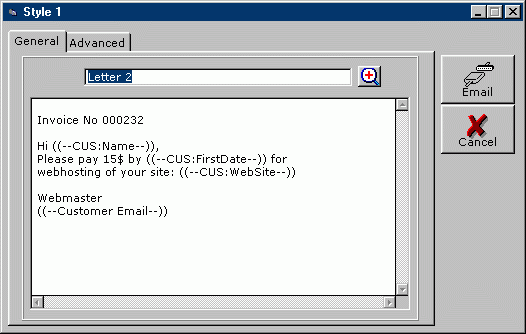
and then merge them with data and email. The picture on the right illustrates how the template works. Download a demo of the template a for closer look. |
|
| The eMerge template is a simple and yet powerful tool to free your customers of the repetitive work | |
| of composing similar emails. It's exactly like simple mail merging. The only difference is that your | |
| customers can email letters after merging rather than mailing or printing them. | |
| Download the fully-functional demo to see it in action. | |
| Advantages of using template: | |
|
|
| Run the installation wizard. It will guide you through a few simple steps. That is it. | |
| IMPORTANT: If you are using Clarion 5-6, after selecting Clarion5-Clarion6 directory wizard | |
| will offer to install it into C:\Clarion5(6)\Clarion8 or C:\C55\Clarion8 directory respectively. | |
| So don't forget to get remove the last \Clarion8. But even if you do - no problem. | |
| Just uninstall the template and re-run the installation. | |
| To start using the template you need to manually register it. | |
| Open Clarion (no application must be opened). | |
| Go to menu Tools (Setup) -> (Edit) Template Registry -> Register. | |
| Select two new templates emerge.tpl and then hit Open button. | |
| You can find this in Clarion7(8,9,10...)\accessory\template\win | |
| for Clarion >= 7 and in Clarion*\Template - for all others. | |
| View the animated reminder of how to do this - Registering Template | |
| (built with our JAVA Animated Help Builder). | |
| Successful usage of this template requires some basic knowledge of how | |
| Clarion processes data file records. So we would not recommend it for beginners. | |
| Follow these simple steps to get the template working: | |
| STEP 1 | |
| First of all you will need a file to store your email letters. You can use your own file. | |
| If you haven't one - try ours. You need to import it into your dictionary. Just open | |
| the dictionary and do File/Import Text. Find TXD file eLetter.txd in your | |
| Clarion*\Examples\eMerge/Demo directory and hit Open button. | |
| Or Clarion7(8,9,10...)\Lessons\eMerge\Demo in Clarion 7-10.... | |
| Easy, isn't it? | |
| STEP 2 | |
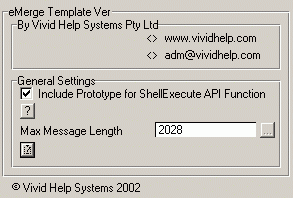
| Open your application and insert Global extension eMerge. All file declarations | |
| should be generated either in your EXE, if it's not multi-dll application, | |
| or otherwise in your main DLL containing all file declarations. So the corresponding | |
| Generate all file declarations checkbox must be checked. | |
 |
|
| STEP 3 | |
| Now you will need some forms to edit those letters. You can easily | |
| generate them from the new file we've just added in your dictionary . | |
| Or if you like ours from the Demo example use these. Just open | |
| your application and do File/Import Text and import Style2.txa or any other. | |
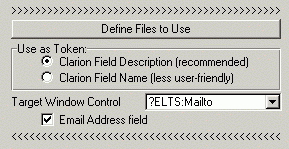
| Open property of each combo for Mailto, Subject and Body fields (if you are building | |
| your own form you should add those controls first) and from | |
| Define files to Use button specify which files of your dictionary | |
| should be used as the source of mail-merge tokens. You have the option to skip some fields. | |
| We cannot do it for you because we don't know your particular data structure :-( | |
| IMPORTANT: You can use as tokens either the Clarion field name or field description. | |
| The first is less user-friendly because the template will use the Clarion fields themselves. | |
| So your customers will see something like this: ((--CUS:Name--)) | |
| in their letters. The second way is preferable, but it requires a little effort. | |
| You need to revise those files in your dictionary and add | |
| corresponding descriptions for each of the fields you are going to use as tokens. | |
| It can be anything you like, so long as those descriptions are unique the template | |
| will function properly. So your customers won't see this: ((--CUS:Name--)) but this: | |
| ((--Customer Name--)). Ensure all pictures for those fields are | |
| correct. The template will format those fields with pictures from your dictionary | |
| so if your dictionary has, for instance, @n12 for a date - users will see LONG number | |
| rather than date :-( | |
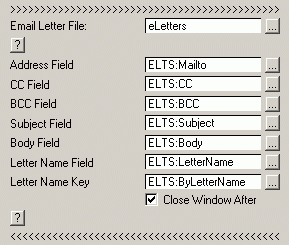
| If you've imported our form you already have the browse for email letters. | |
| Otherwise you should generate it with the browse template and add | |
| Merge and Email button control. | |
 |
|
| STEP 4 | |
| Call just created browse from any window. So your customers will | |
| normally select customer from a browse, hit email button. Select | |
| letter which they want to send and hit Send button. | |
| The emplate will merge letters with current values from record buffer. | |
| If you want to merge | |
| data for currently selected in a browse customer | |
| you should ensure the customer record is fetched OK. | |
| No doubt you already know, but just as a reminder, | |
| remember to have those fields being merged in Browse List Box or in the | |
| Hot Keys. In ABC it doesn't hurt to call BRWx.UpdateViewRecord() | |
| method to ensure all Hot Keys are synchronized with the | |
| currently selected record. | |
 |
|
| IMPORTANT: eMerge template uses the mailto windows program. Unfortunately | |
| each email program has internal restrictions on the total length of command | |
| which mailto can process. In OE 5.5 and 6.0 this limit is 2028 characters. | |
| So the template allows users to change this value which can be found | |
| experimentally. If a letter is larger than that limit users will have the option | |
| to preview the email and do something about it. That's why this template | |
| should be used for composing relatively short messages. Luckily | |
| nobody reads long emails these days ... | |
| We've installed an example into your Clarion (Clarion5, C55, Clarion6) Examples\eMerge\Demo | |
| Or Clarion7(8,9,10...)\Lessons\eMerge\Demo in Clarion 7-10.... | |
| So for various settings you can investigate the source. | |
 |
|
 |
|
Copyright © 2025 Vivid Help Systems Pty Ltd |
|