|
|
|

|
|
|
Conductor Template |
|
|
|
|
|
|
|
Introduction |
|
|
Conductor Template for Clarion 5-10... ABC/Legacy. This
is a White box template designed to simultaneously generate code at
any major embed point of all application procedures (or any subset of them). It might be used for building program security, program log or just for
customizing functionality of all application procedures from one place without even opening them. Utility is included to easily transfer all embeds from one application to another.
So delegate all the boring repetitive work to this digital slave and spend your time on something more exciting than copying-and-pasting some bit of code over and over again day after day after day! Download 'Try before buy' shareware version of template and test that it's right for your application. |
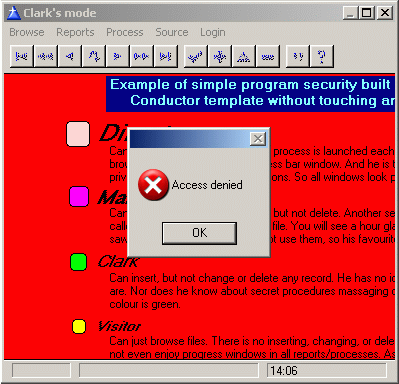
|
| Example (based on real story). Your client asks you to get rid of all minimize buttons on all Windows. | |
| In no time you will find that placing 0{PROP:ICON}='' anywhere after opening a window | |
| does the trick - the window still keeps the icon, but the minimize/maximize buttons go away. | |
| The only problem now is to put this code in all windows of your application. If you have 20 of them | |
| it is one story, but what if it is multi-dll application and you are now supposed to repeat this | |
| simple routine 500 times! You are facing many hours of annoying work opening each procedure, | |
| finding the proper embed point, and inserting this magic line of code. It is not uncommon that | |
| clients change their mind. So you have finally done all this repetitive work and are demonstrating the new | |
| minimize-button-free application. All of a sudden comes a new suggestion - to hide those buttons | |
| conditionally. Again it is not exactly rocket science. This, for instance, would work: | |
| IF GLO:NoMinimize THEN 0{PROP:ICON}=''. The rest is "easy" - 500 times to open | |
| all windows in your application and change this embed... | |
| This is exactly what our Conductor template does! You just put this embed into the template prompt | |
| and say - "place it in all windows, or all browses, or all reports after opening window". | |
| There are no restrictions, whether on the number of such embeds or on the length of any particular | |
| embed. So you will find millions of jobs for this useful template for each of your applications. | |
| Every time you think "it would be nice to call this procedure in each Form" or, | |
| say, "I have to assign this window property depending on user level in all browses", | |
| the time has come to employ the Conductor template. | |
| To simplify your life as a developer, this template goes even further. | |
| Not only can you now broadcast your embeds within any application, but | |
| also transfer a whole bunch of such embeds from one application to another. | |
| You can even export those embeds from ABC and import them into Legacy | |
| or vice versa. So once you have this template, you need never | |
| type any line of code a second time. | |
| Main advantages: | |
|
|
Installation |
|
| Run the installation wizard. It will guide you through a few simple steps. That is it. | |
| IMPORTANT: If you are using Clarion 5-6, after selecting Clarion5-Clarion6 the directory wizard | |
| will offer to install it into C:\Clarion5(6)\Clarion8 or C:\C55\Clarion8 directory respectively. | |
| So don't forget to get rid of the last \Clarion8. But even if you do - no problem. | |
| Just uninstall the template and re-run the installation. | |
| To start using the template you have to manually register it. | |
| Here's how: Open Clarion (no application must be open). | |
| Go to menu Tools (Setup) -> (Edit) Template Registry -> Register. Select | |
| conductor.tpl and then hit Open button. | |
| You can find it in Clarion7(8,9,10...)\accessory\template\win | |
| for Clarion 7 and in Clarion*\Template - for all others. | |
|
View
the animated reminder on how to do
this - Registering
Template
|
|
| (built with our JAVA Animated Help Builder). | |
|
|
|
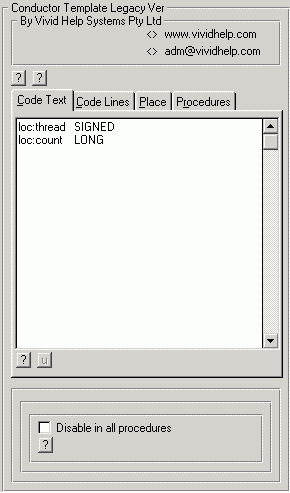
| Template usage is very straightforward. You may wish to read and | |
| look at the screenshot emulation provided below. | |
| 1. Open Global -> Extensions and insert the Conductor Global template. | |
| 2. Type/paste the code you want to serialize. Use either Code Text Tab or Code Lines Tab. | |
| It doesn't matter where you put your code, so it is up to you which prompt to use. | |
| If you are not going to use the second prompt you can get rid of it completely with | |
| Hide this tab checkbox. This operation is reversible so you can always get it back. | |
| 3. From the Place Tab specify which embed point should receive this code. | |
| Starting from ver. 6.3, in case of reports After Opening Window actually places code | |
| After Opening Report so you can access both progress window and report controls. | |
| TIP: To simplify access to Report controls, wrap your code with | |
| SETTARGET(Report) ... SETTARGET() function calls. See the Demo for details. | |
| 4. Finally from Procedures Tab tag which procedure types should receive it | |
| If nothing is selected this embed will go into all procedures. | |
| You can use the first and the last couple of embed points in source | |
| procedures as well (Place Tab of the picture below). But you should explicitly | |
| specify it by checking the Apply to source procedures checkbox. | |
| You are free to use this extension as many times as needed. | |
| Just in case, the template shows which embed code and in what | |
| embed point is generated in the procedure extension area as well. | |
| Global extension takes care of the procedure area so you can completely | |
| ignore the procedure extensions. | |
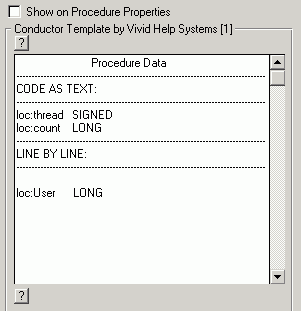
|
|
| It is important to understand that what you see here is | |
| just a reminder, so if you want to change this code you should do it | |
| from the Global application extension area only. That is about it! | |
| Installation ships ABC and Legacy examples Clarion*\Examples\Conduct\Demo | |
| Or Clarion7(8,9,10...)\Lessons\Conduct\Demo in Clarion 7-10.... | |
| so you can have a look at how the template is supposed to be used. | |
| But because template usage is so simple you will hardly need it. | |
| Useful Utilities | |
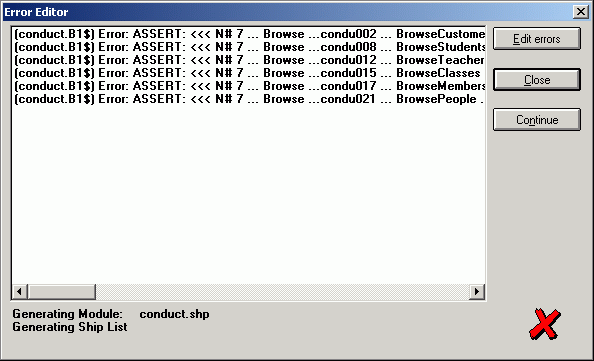
| If you want to quickly make sure that all procedures specified do receive embed | |
| code, you can set ON Show procedures involved check box on the last Tab of the | |
| respective Global extension and compile the application. You will get a list similar | |
| to this one: | |
|
|
| It shows template instance, procedure type, module and procedure name respectively. | |
| To proceed you should set this checkbox to OFF or you will not be able to compile the application. | |
| You can, of course, open the source of any procedure and see your code there as well. | |
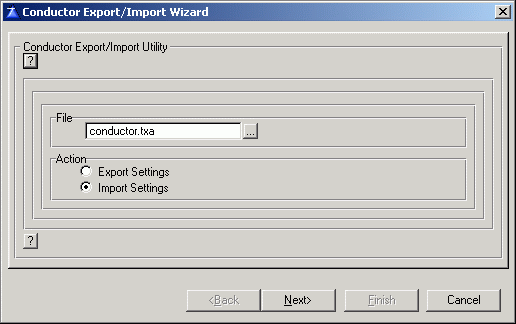
| To simplify your life as a Clarion developer the Conductor template even goes one step further. | |
| So not only are you able to broadcast your embeds around one application, but you can also transfer all of them | |
| from one application to another with the special utility template which is an essential part of the Conductor. | |
|
|
| To use it follow these simple steps: | |
| 1. Open the donor application | |
| 2. From Clarion Menu Application - Template Utility... launch Conductor wizard | |
| 3. Hit Export settings radio button, then Next, then Finish | |
| 4. Open the acceptor application | |
| 5. Delete all instances of Conductor template from Global Extensions | |
| 6. Run Conductor wizard once again, but this time with Import settings button ON | |
| You can even transfer embeds from an ABC application into legacy or vice versa. | |
| Just remember the template doesn't do any conversion for you - it transfers all | |
| embeds as is. So if you use some ABC specific code like SELF. Request | |
| you will need to convert it into Legacy. | |
| And just a bit of advice. When using the template you should keep in mind that | |
| this code will be in all of your procedures. So you have to write generically. | |
| For instance, it is much better to refer to the window by its control | |
| number, for instance: 0{PROP:TEXT} = 'Show this text on all windows' rather than | |
| by name: ThisWindow{PROP:TEXT} = 'Show this text on all windows' | |
| Some windows can have different names like QuickWindow so you won't | |
| be able to compile such code. | |
| As this is the first version of the template we are constantly | |
| seeking to improve it. In particular we would like to make sure | |
| the list of common embeds covers all of your needs. | |
| We'd be interested in knowing whether the way you select procedures (by type with option to suspend generation | |
| at any particular procedure) is convenient enough. We could add other scenarios. | |
| So all your comments and/or suggestions are welcome: feedback | |
| Move cursor on top of a Tab to open! | |

|
|
|
Copyright © 2025 Vivid Help Systems Pty Ltd |
|